How to Write an Invoice Using Our Free Invoice Generator
Learn how to create a professional invoice step by step using our free invoice generator. Add your details, preview the document, and save a PDF in minutes.
Writing an invoice should not feel complicated. If you are a freelancer, contractor, photographer, consultant, or small business owner, the main goal is simple: clearly show who the invoice is from, who it is for, what was provided, how much is owed, and how the client can pay.
Our free invoice generator was built to make that process fast. You can enter your details, add products or services, preview the document live, and save a professional PDF without creating an account.
In this guide, we will walk through exactly how to write an invoice using the tool and what information matters most.
What every invoice should include
A good invoice is clear, complete, and easy for the client to act on. At a minimum, it should include your business or individual name, the client’s name, an invoice number, a date, a list of products or services, the amount due, and your payment details.
Depending on the job, you may also want to add tax, discounts, shipping, notes, a required deposit, or custom business and client fields. The best invoice is not the most complicated one. It is the one your client can understand immediately.
Step 1: Add your issuer details
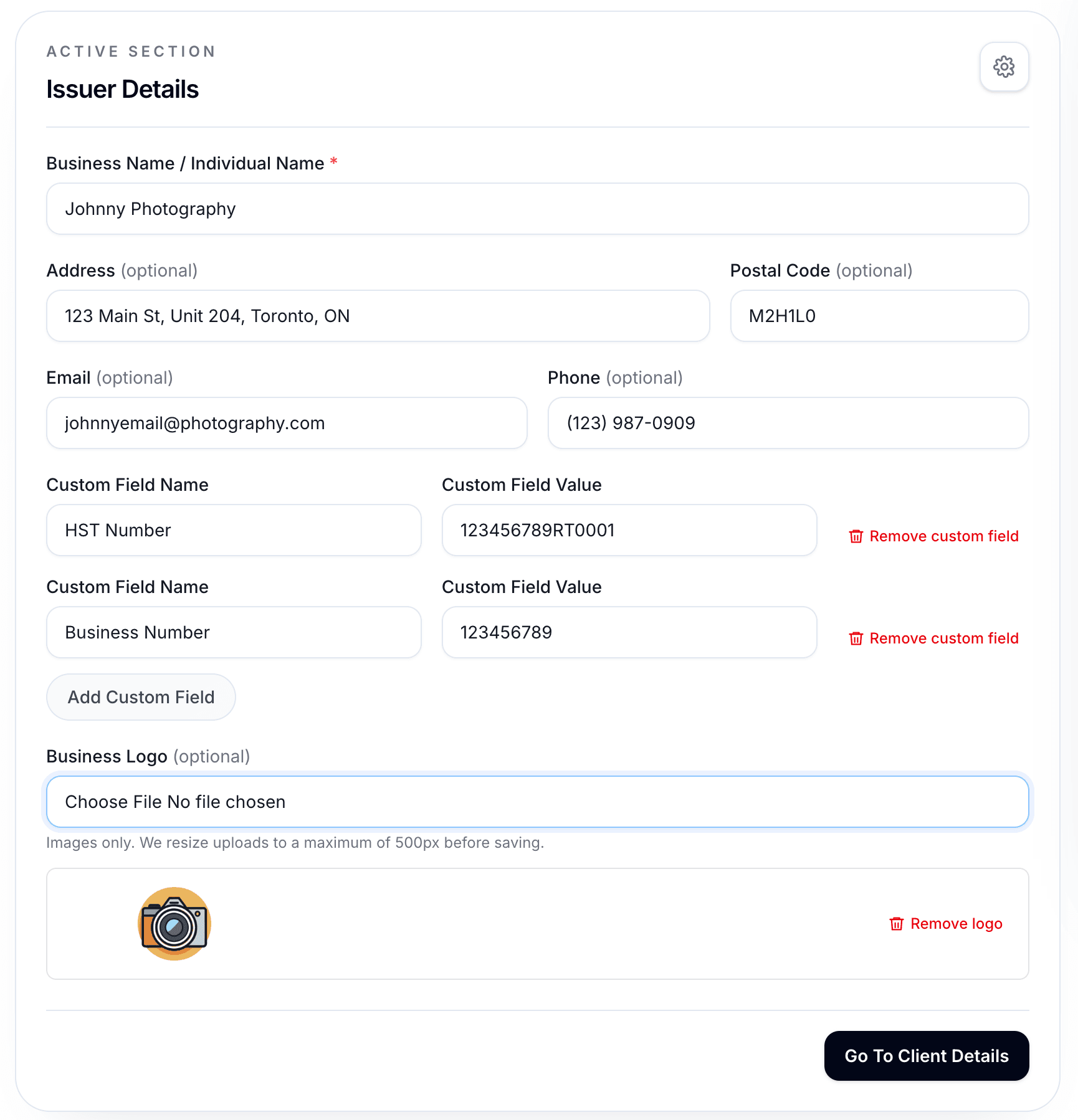
Start with the Issuer Details tab. This is where you enter the business or individual name that is sending the invoice. You can also add your address, postal code, email, phone number, logo, and any custom fields you want shown on the invoice.
Custom fields are especially useful if you need to include something more specific than a tax ID, such as a registration number, license number, or insurance-related identifier.
Step 2: Add the client details
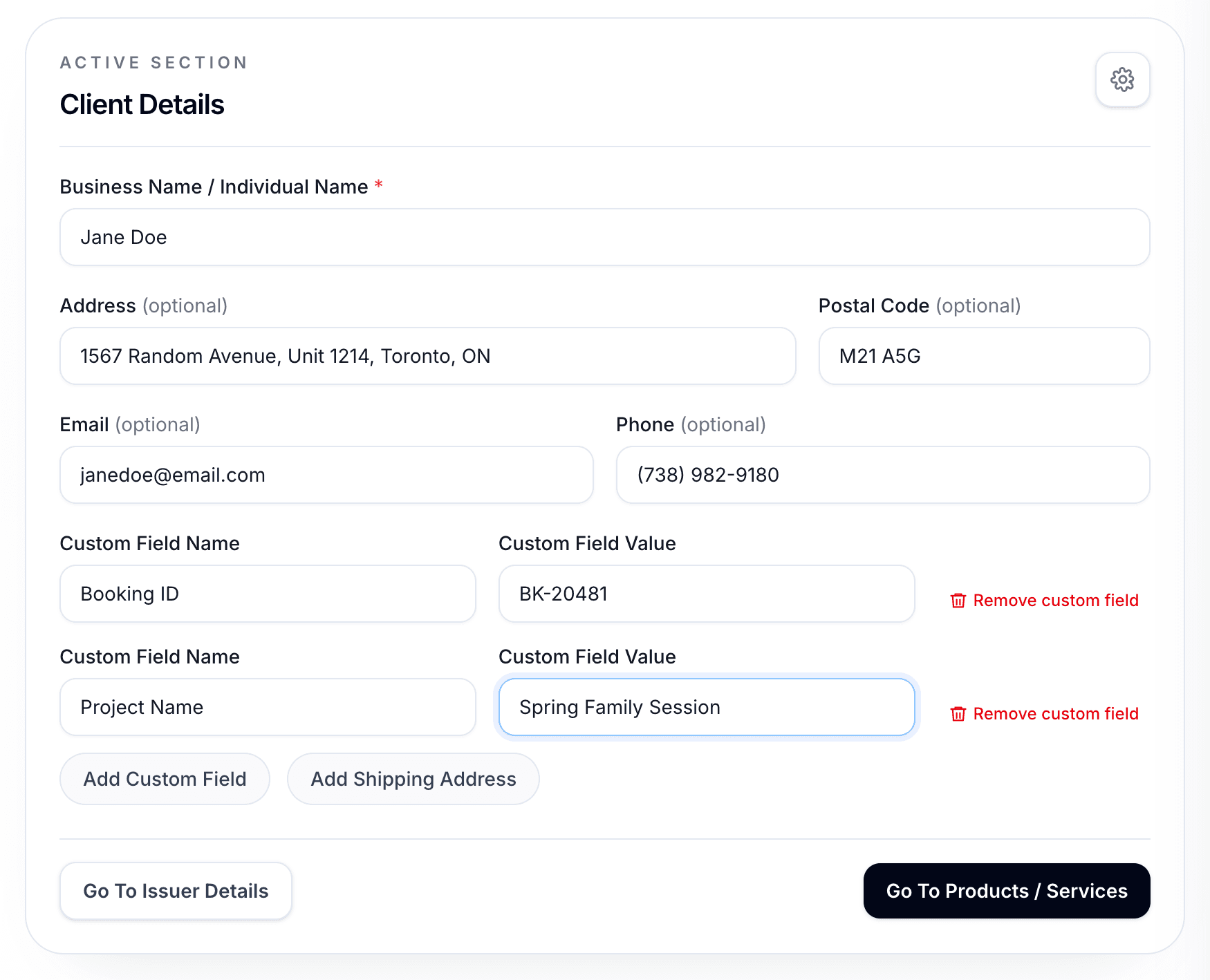
Next, move to Client Details. Add the client’s business or individual name, address, postal code, email, and phone number. You can also add custom fields for the client if needed.
If you need to ship something to a different location, the form also supports a separate shipping address. That gives you a cleaner, more professional document when the billing and shipping destinations are not the same.
Step 3: Add your products or services
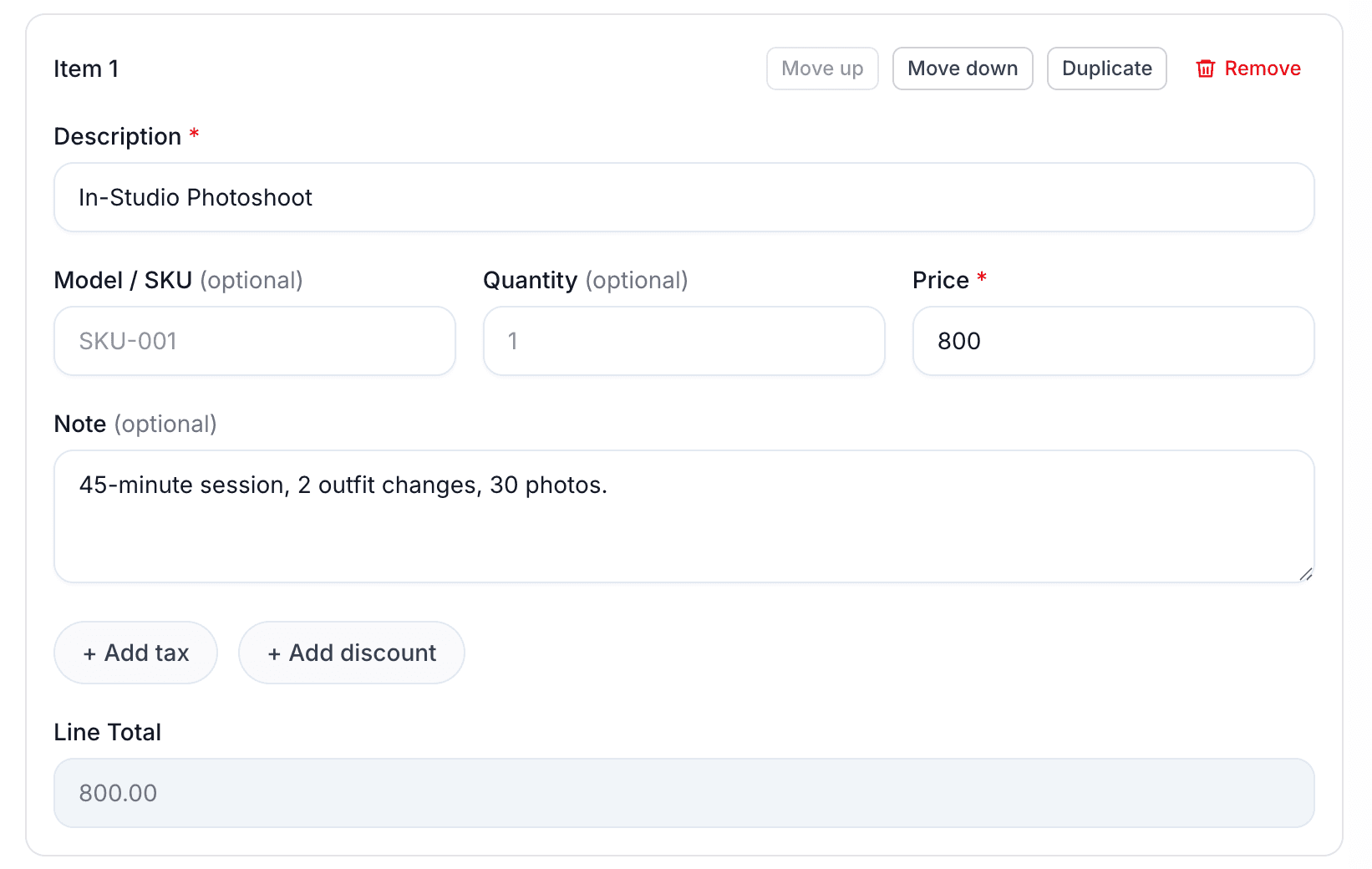
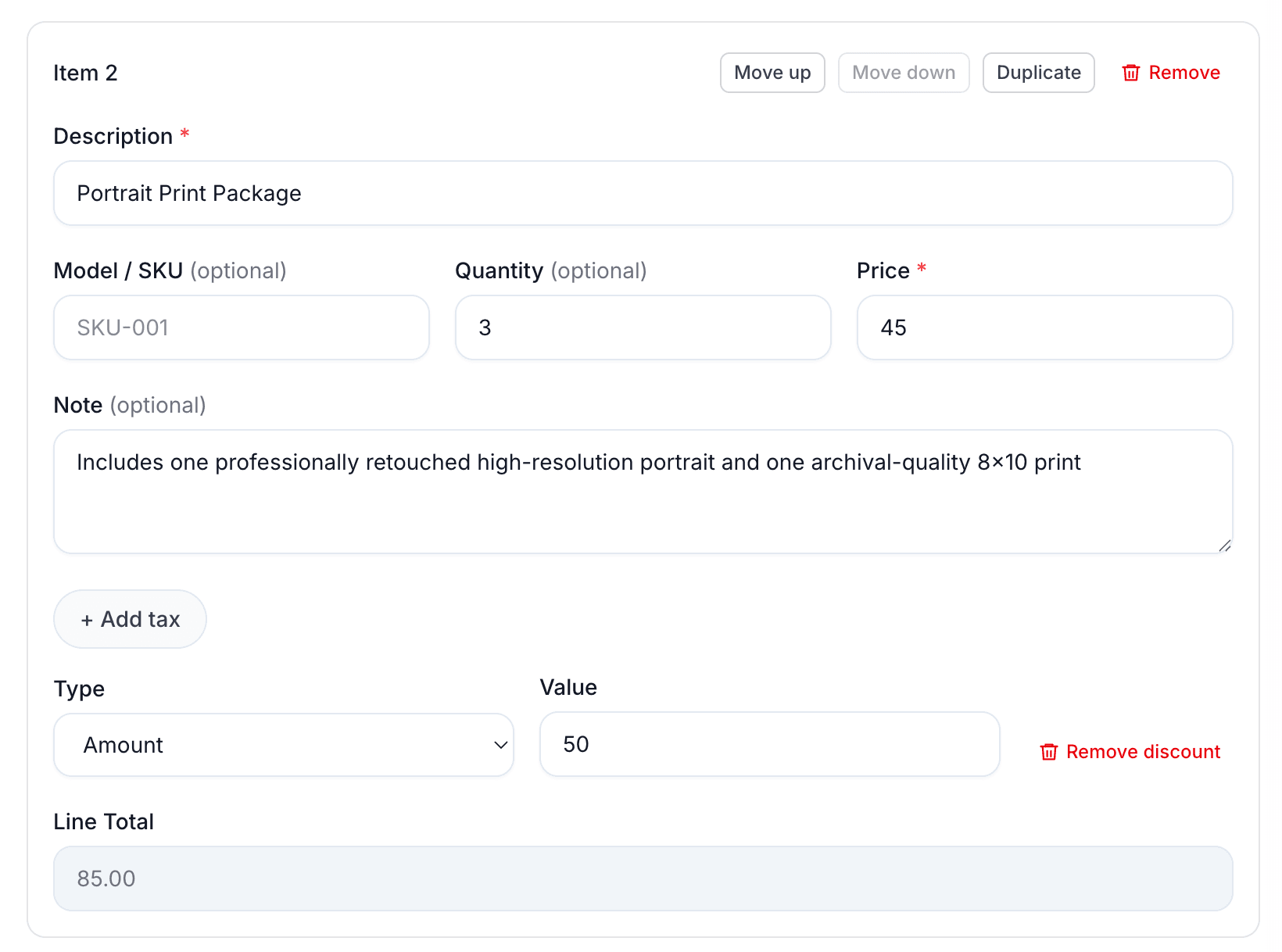
The Products / Services tab is where the invoice becomes specific. Add each item with a description and price. Quantity is optional, which is useful for service-based work. You can also add a model or SKU, a note under the line item, tax, and discount.
If you are billing for services, short line item notes can help explain what was included. For example, a photographer might add a note describing session length, deliverables, or turnaround time.
As you add items, the line total is calculated automatically, and the live preview updates immediately.
Step 4: Configure document details
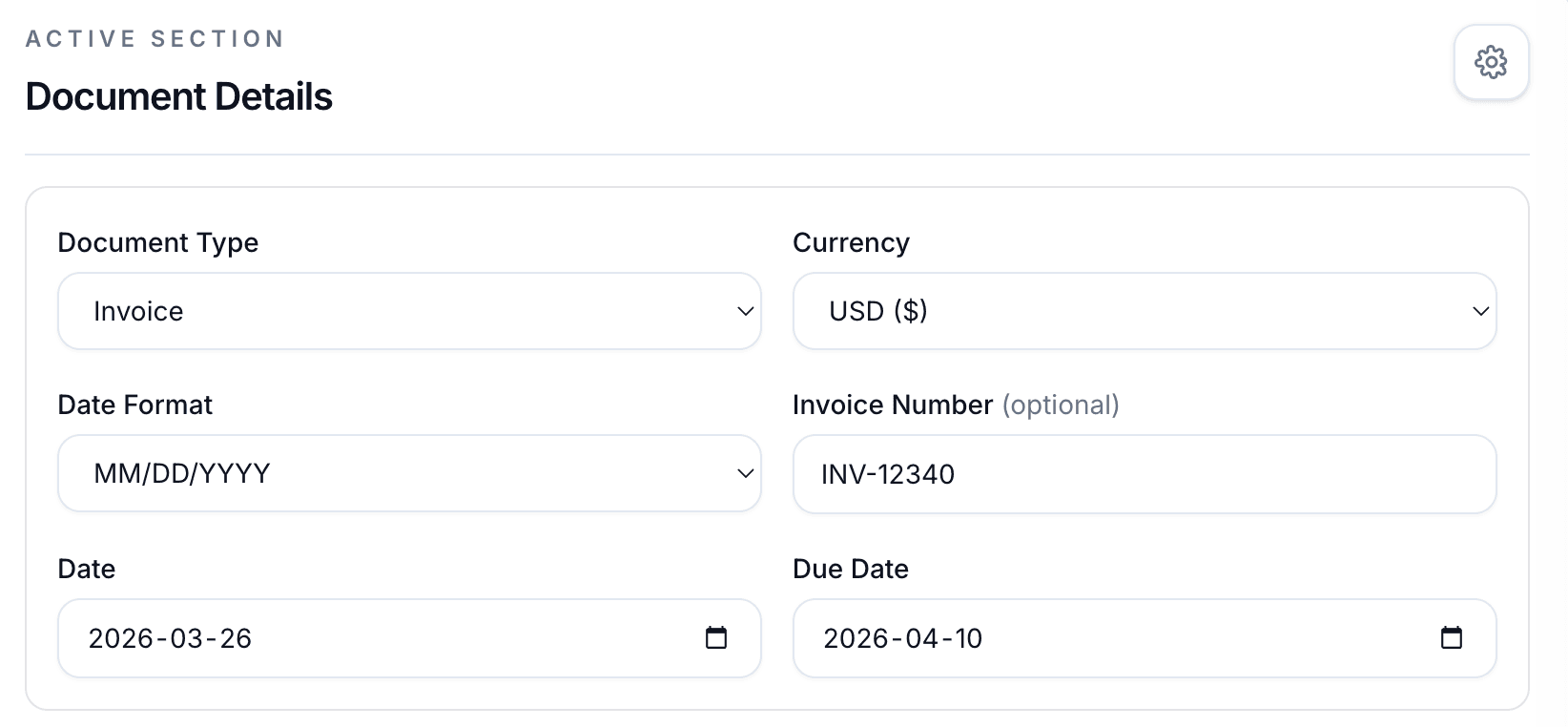
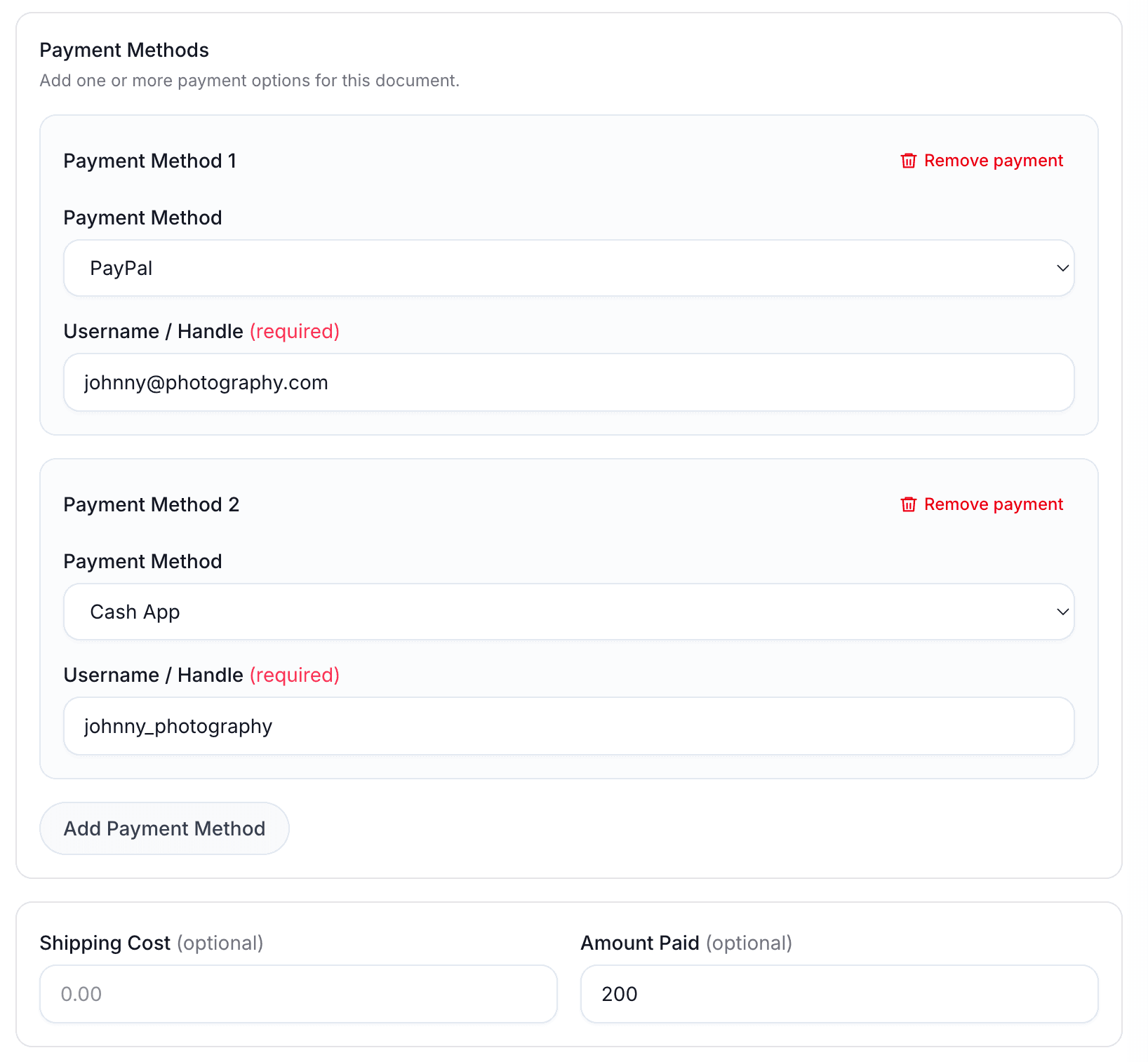
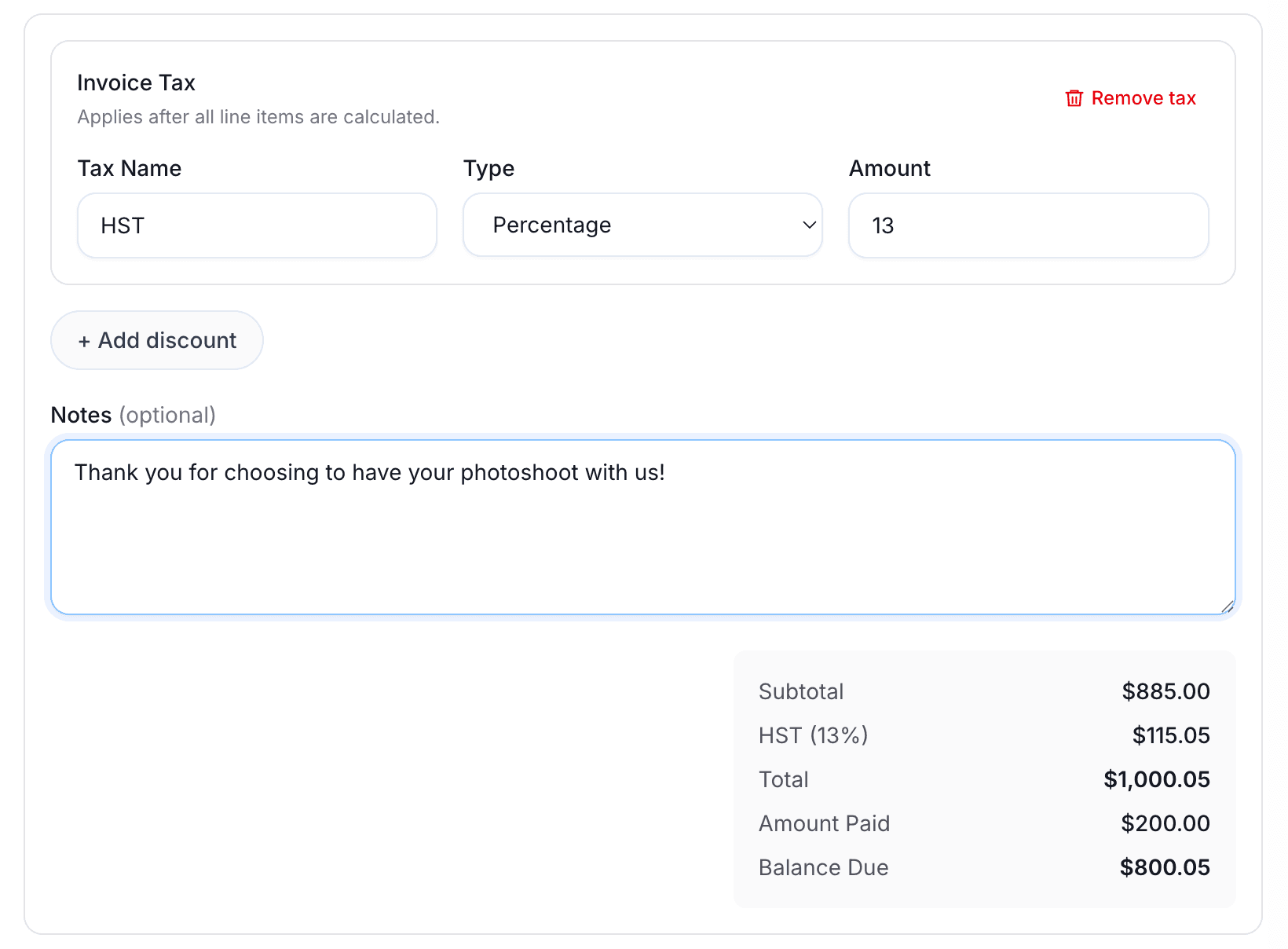
In Document Details, choose the document type, number, date format, currency, and anything else the invoice needs. If you are creating an invoice, you can also add shipping cost, amount paid, invoice-level tax, invoice-level discount, payment methods, and notes.
This section is also where you control the parts that make the invoice easier for the client to settle, such as payment methods and a required deposit for quotes.
Optional: Choose the template that fits your style
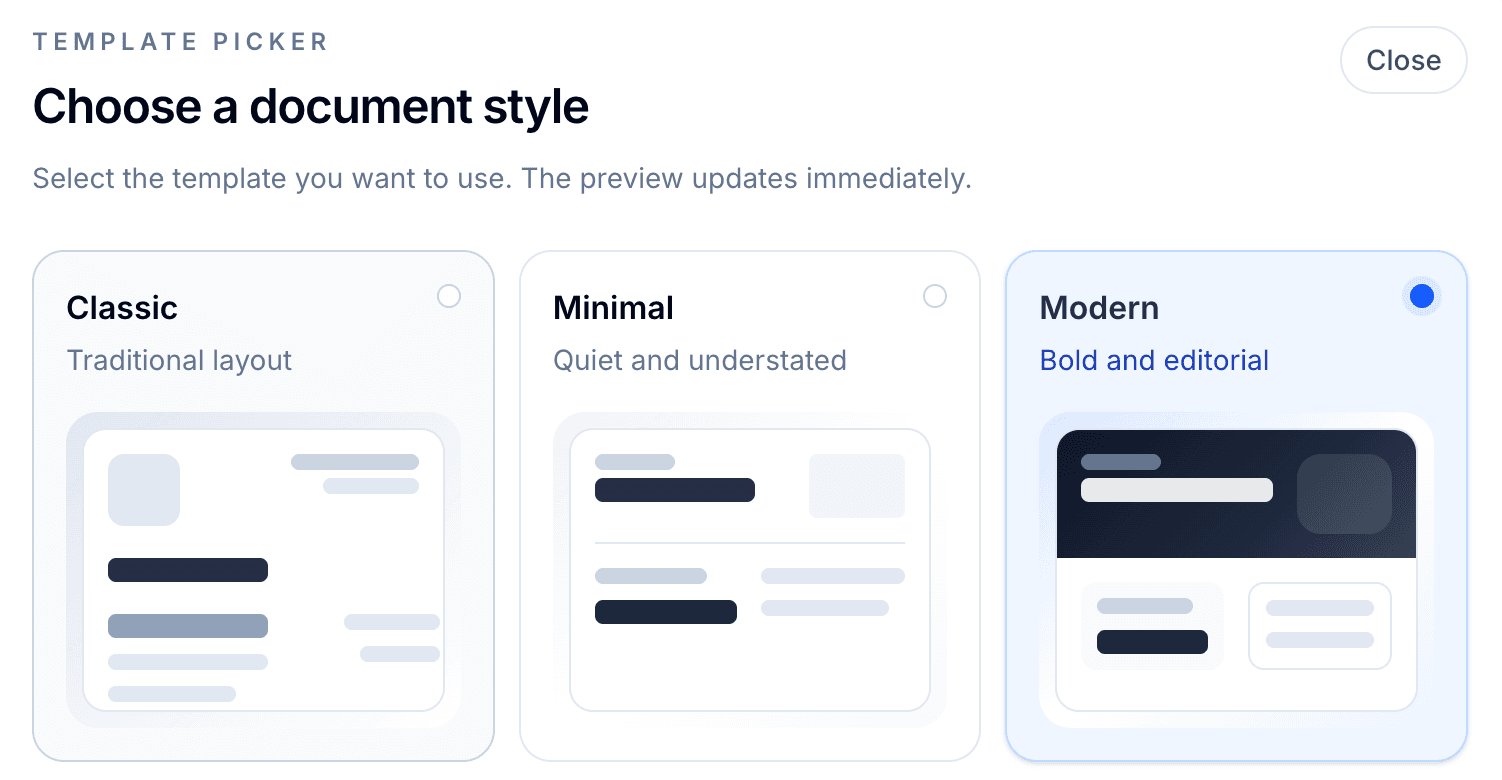
If you want the invoice to feel a little more tailored, you can switch between Classic, Minimal, and Modern templates. Each template uses the same data, so you do not need to re-enter anything.
For a more polished, client-facing presentation, the Modern template is a strong option because it shows off branding and layout particularly well.
Step 5: Review the live preview
As you fill out the form, the invoice preview updates in real time. On larger screens, you can see the preview beside the form. On mobile, you can switch between form and preview views.
This is the best moment to double-check formatting, totals, payment methods, and any custom fields. It is much easier to catch a missing detail before sending the PDF to a client.
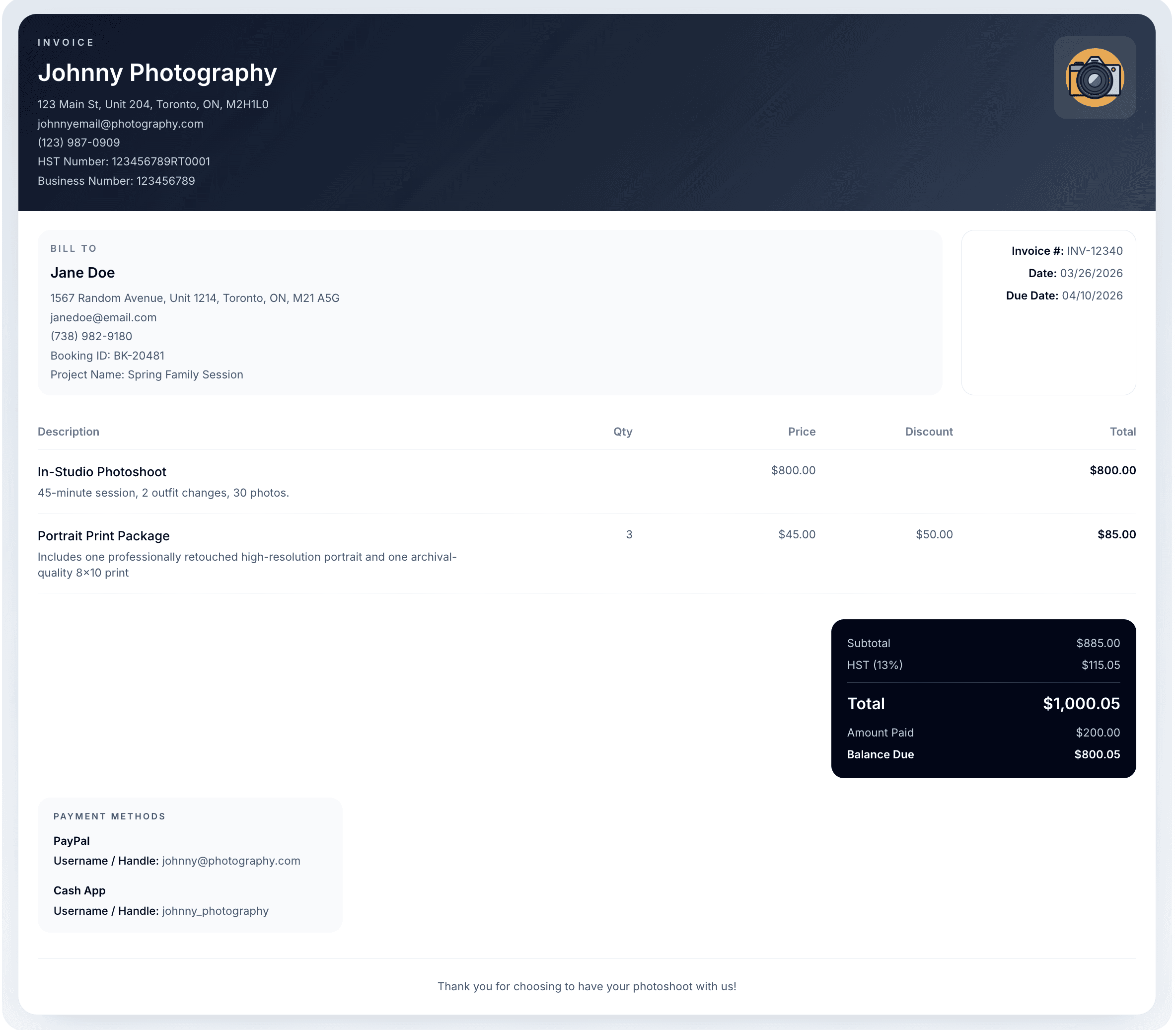
Step 6: Save the invoice as a PDF
Once everything looks right, use Save PDF to export the invoice. You can also open the full-screen preview first if you want a larger look at the final document before downloading it.
The saved PDF is designed to look clean and professional, whether you are sending it by email or printing it for your records. You can also link to or reuse a sample PDF when you want to show clients or blog readers what the final result looks like.
Common invoice mistakes to avoid
The most common invoice mistakes are surprisingly simple: forgetting to add a client name, using unclear line item descriptions, missing payment instructions, leaving out tax information, or sending an invoice without reviewing the totals.
Another common issue is making the invoice too vague. A client should not have to guess what they are paying for. Clear descriptions, correct dates, and visible payment methods make a big difference.
Create your invoice in minutes
If you need to write an invoice quickly, the easiest approach is to use a tool that handles the structure and formatting for you. Our free invoice generator is built for exactly that: no login, no hidden fees, and a professional PDF in minutes.
You can start here whenever you are ready: Free Invoice Generator. If you want to see an example first, open the sample PDF linked below.
Ready to create your own invoice?
If you want to build and export your own invoice, you can open the free generator and get started in minutes.